
Mac mini M4 In-Depth Hardware Inspection Guide
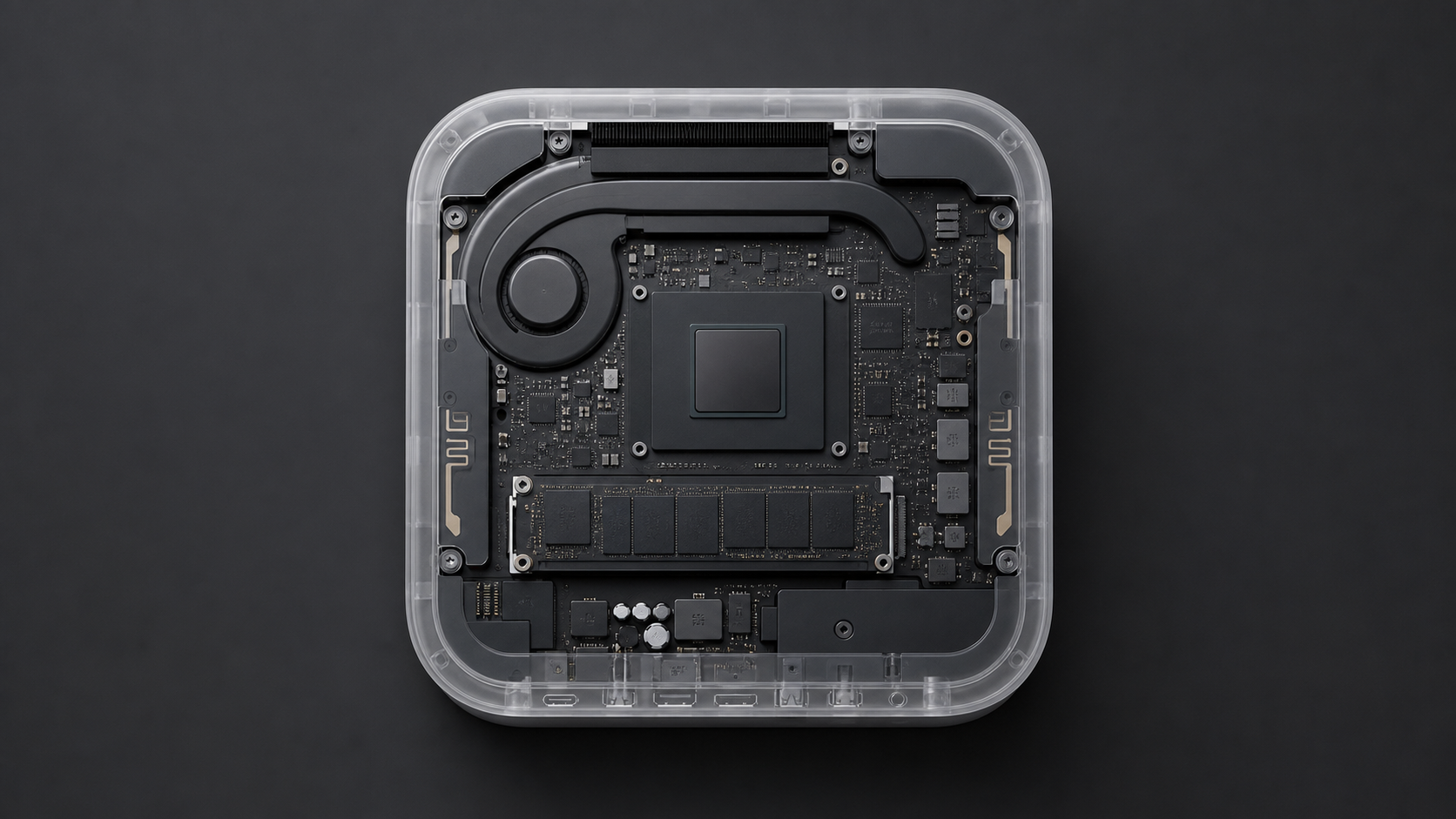
When I get a new Mac, I like to do a systematic inspection first: hardware info, SSD health, port status, security configuration, and system stability — all checked through. This way, if any issues come up later, I can tell whether it's a machine problem or caused by the usage environment.
This article is based on the actual inspection process for the Mac mini M4. The commands are mainly applicable to Apple Silicon Macs.
Basic Information
View hardware overview:
system_profiler SPHardwareDataTypeFocus on these fields:
- Model and model identifier
- Chip model
- Unified memory capacity
- Serial number
- System firmware version
View macOS version:
sw_versView system uptime:
uptimeView first setup date:
ls -la /var/db/.AppleSetupDoneThe modification time of .AppleSetupDone can usually serve as a reference for when the initial setup was performed.
Storage System Inspection
Built-in SSD Information
system_profiler SPNVMeDataTypeYou can also check the diskutil output:
diskutil info disk0Key things to focus on:
- SSD model
- Protocol
- TRIM support
- SMART status
- APFS container and volume status
SMART Health Data
First install smartmontools:
brew install smartmontoolsView the complete SMART data for the built-in SSD:
sudo smartctl -a /dev/disk0Common metrics can be understood as follows:
| Metric | Meaning | Normal Reference |
|---|---|---|
| SMART overall-health | Overall health status | PASSED |
| Temperature | SSD temperature | Usually below 70°C |
| Available Spare | Remaining spare blocks | New machine usually 100% |
| Percentage Used | Lifespan consumption | Lower is better |
| Power On Hours | Power-on duration | New machine usually very low |
| Power Cycles | Boot count | New machine usually only a few |
| Data Units Written | Write volume | New machine should be noticeably low |
| Unsafe Shutdowns | Abnormal shutdowns | Fewer is better |
| Media and Data Integrity Errors | Media errors | Should be 0 |
| Error Information Log Entries | Error logs | Should be 0 |
APFS Container Health
diskutil apfs listFocus on capacity usage and whether the system volume is Sealed. Normal system volume signature verification means the system volume hasn't been abnormally modified.
External SSD
External drives can be checked like this:
diskutil info disk4Replace disk4 with the actual disk number. Note that many USB-to-NVMe adapters cannot pass through SMART data — not being able to read it doesn't necessarily mean the drive has a problem.
Display and Ports
View display configuration:
system_profiler SPDisplaysDataTypeView Thunderbolt/USB4 ports:
system_profiler SPThunderboltDataTypeFor the M4 Mac mini, focus on link speed and device recognition status of high-speed ports.
View network interfaces:
networksetup -listallhardwareportsView Wi-Fi details:
system_profiler SPAirPortDataTypeView Bluetooth:
system_profiler SPBluetoothDataTypeView USB devices:
system_profiler SPUSBDataTypeView audio devices:
system_profiler SPAudioDataTypeSystem Security Status
Check SIP:
csrutil statusShould normally be enabled.
Check signed system volume:
csrutil authenticated-root statusShould also normally be enabled.
Check FileVault:
fdesetup statusIf the machine contains important data, it's recommended to enable FileVault.
Apple Silicon Macs no longer use firmwarepasswd in the traditional way — security capabilities are primarily provided by the Secure Enclave and startup security policies.
Stability Check
View kernel panic logs:
ls -lt /Library/Logs/DiagnosticReports/kernel* 2>/dev/null
ls -lt /Library/Logs/DiagnosticReports/*.panic 2>/dev/null
No output is usually a good sign, meaning no corresponding panic logs were found.
View application crash logs:
ls -lt ~/Library/Logs/DiagnosticReports/View hardware error-related logs:
log show --predicate 'eventMessage contains "MCA"' --last 7d
log show --predicate 'eventMessage contains "hardware error" or eventMessage contains "ECC"' --last 7d
View recent system errors:
log show --predicate 'messageType == error' --last 24h --style compact | grep -v "Safari\|Chrome\|WebContent"View temperature and thermal management logs:
log show --predicate 'eventMessage contains "thermal" or eventMessage contains "temperature"' --last 1d --style compactYou don't need to aim for zero errors in system logs — the focus is on whether there are continuously occurring, hardware-related, usage-affecting errors.
Simple Performance Benchmarks
CPU Single-Core Test
python3 -c "
import time
start = time.time()
total = 0
for i in range(10000000):
    total += i * i
elapsed = time.time() - start
print(f'10M iterations: {elapsed:.3f}s')
print(f'Score: {10000000/elapsed:.0f} ops/sec')
"
Memory Allocation Test
python3 -c "
import time
size = 100 * 1024 * 1024
start = time.time()
data = b'\x00' * size
elapsed = time.time() - start
print(f'100MB alloc: {elapsed:.3f}s')
print(f'Bandwidth: {size/elapsed/1024/1024:.0f} MB/s')
"
These tests can't replace professional benchmarks, but they can quickly identify if a machine has obvious abnormalities.
Third-Party Extension Check
View non-Apple kernel extensions:
kextstat | grep -v com.appleView system extensions:
systemextensionsctl listIf a new machine has unexplained crashes, network issues, or permission problems, third-party kernel extensions and system extensions are areas worth investigating.
Quick Checklist
| Check Item | Command | Normal Reference |
|---|---|---|
| SIP | csrutil status | enabled |
| SSV | csrutil authenticated-root status | enabled |
| FileVault | fdesetup status | Recommended to enable |
| SMART | sudo smartctl -H /dev/disk0 | PASSED |
| SSD Temperature | sudo smartctl -A /dev/disk0 | grep Temp | Below 70°C |
| SSD Lifespan | sudo smartctl -A /dev/disk0 | grep "Percentage Used" | Lower is better |
| Kernel Panic | ls /Library/Logs/DiagnosticReports/*.panic | No files |
| TRIM | system_profiler SPNVMeDataType | grep TRIM | Yes |
| APFS Sealed | diskutil apfs list | grep Sealed | System volume is Yes |
References
- Apple Official: View Mac Hardware Information
- Apple Official: Check Warranty Status
- Apple Official: Mac Diagnostics
- smartmontools Official Documentation
- Apple Official: SIP Explanation
- Apple Official: FileVault Explanation
Summary
Inspecting a new Mac doesn't require running complex tools right away. Start with built-in system commands to confirm hardware, storage, ports, security status, and crash logs. Then supplement with SMART and simple performance tests as needed to quickly determine if the machine is healthy.
If you need long-term monitoring later, consider smartmontools, temperature monitoring tools, and more comprehensive benchmarking software.