
Why Did VS Code Mysteriously Disappear on macOS?
A bizarre experience: the VS Code icon in the Dock suddenly turned into a generic app icon, and the original Visual Studio Code.app was gone from Finder. After investigation, the problem turned out to be caused by VS Code's auto-update, the ShipIt background process, and cross-APFS-volume moves.
Origin
I opened my Mac mini early in the morning to start working and habitually clicked the VS Code icon in the Dock. The icon turned into a blank macOS generic app icon.
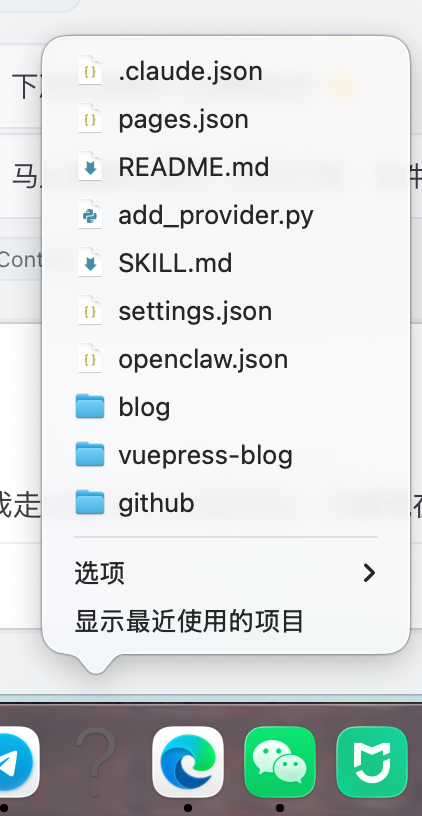
Opening Finder to the application directory also showed VS Code in an abnormal state:

My VS Code wasn't installed in the system default /Applications/, but in the applications directory on an external APFS volume.
First Reaction: Where Did the App Go?
First check the application directory:
ls -la "/Volumes/<external-volume>/applications/" | grep -i "code\|visual"No output. In other words, the Visual Studio Code.app directory no longer exists.
But the Dock still has the old path saved:
defaults read com.apple.dock persistent-apps | grep -A2 "Visual Studio Code"The output still shows a path like:
file:///Volumes/<external-volume>/applications/Visual%20Studio%20Code.app/The Dock remembered an app that no longer exists, so macOS could only display the generic icon.
The Real Culprit: VS Code Auto-Update
Looking further at the system temporary directory, I found traces of VS Code's updater:
find /private/var/folders -name "*.ShipIt*" -maxdepth 4Multiple directories like this appeared:
/private/var/folders/.../T/com.microsoft.VSCode.ShipIt.xxxxxxxxEntering one of these directories revealed a complete Visual Studio Code.app package. In other words, the old version had been deleted from the target directory, but the new version was stuck in the temporary directory and never successfully moved back to the installation location.
Checking the version of the app in the temporary directory:
defaults read "/private/var/folders/.../ShipIt.xxxxxxxx/Visual Studio Code.app/Contents/Info.plist" CFBundleShortVersionStringConfirmed it was the updated new version.
The conclusion was clear: VS Code's auto-updater deleted the old version, but moving the new version back to the original location failed.
Why Did It Fail?
VS Code uses Electron's Squirrel.Mac for auto-updates. The core helper process is called ShipIt. The general flow is:
1. Check for updates and download new version
2. Extract to /private/var/folders/.../T/
3. Launch the ShipIt helper process
4. ShipIt waits for VS Code to exit
5. Delete the old Visual Studio Code.app
6. Move the new app to the original installation location
The problem is that the temporary directory and installation directory are on different volumes.
macOS's temporary directory is typically on the boot volume:
/private/var/folders/<hash>/T/While my VS Code is on an external APFS volume:
/Volumes/<external-volume>/applications/Visual Studio Code.appSame-volume moves are usually just directory entry changes, which is fast. Cross-volume moves become copy-then-delete. This process isn't atomic — as long as the copy is interrupted, the target volume has permission issues, disk space is insufficient, or the volume is briefly unavailable, you can end up in a state where "old version deleted, new version didn't arrive."
This isn't a VS Code-specific problem. Any updater that places the new version in the boot volume's temporary directory and then moves the app to another volume has similar risk.
Why Did It Disappear Again After Reinstall?
The first time, I moved the app back from the temporary directory:
mv "/private/var/folders/.../T/com.microsoft.VSCode.ShipIt.xxxxxxxx/Visual Studio Code.app" \
   "/Volumes/<external-volume>/applications/"
Then disabled auto-update in VS Code settings:
{
  "update.mode": "none"
}
I thought the problem was solved, but after reinstalling via DMG, VS Code was deleted again.
The reason is that ShipIt is an independent background process. The old VS Code had already triggered an update, and ShipIt might still be queued waiting to execute. update.mode: "none" only takes effect when the VS Code main process reads the configuration — it can't stop an already-running ShipIt.
Final Fix
1. Kill the ShipIt Process
pkill -f "ShipIt"2. Recover the App from the Latest Temporary Directory
mv "/private/var/folders/.../T/com.microsoft.VSCode.ShipIt.xxxxxxxx/Visual Studio Code.app" \
   "/Volumes/<external-volume>/applications/"
3. Disable Auto-Updater Execution Permissions
The key is to prevent the ShipIt binary from continuing to run:
chmod -x "/Volumes/<external-volume>/applications/Visual Studio Code.app/Contents/Frameworks/Squirrel.framework/Versions/A/Resources/ShipIt"Confirm the execute permission has been removed:
ls -la "/Volumes/<external-volume>/applications/Visual Studio Code.app/Contents/Frameworks/Squirrel.framework/Versions/A/Resources/ShipIt"If there's no x in the permissions, it can no longer be directly executed.
4. Clean Up Temporary Update Directories
rm -rf /private/var/folders/.../T/com.microsoft.VSCode.ShipIt.*Be careful with the path here — make sure you only delete VS Code's ShipIt temporary directories.
Fix Results
- VS Code starts normally.
- Dock icon is restored.
- Can be reopened after quitting.
- Auto-update no longer launches ShipIt.
- Future updates require manually downloading DMG or using a package manager.
Lessons Learned
update.mode: "none" Is Not Enough
It can only prevent the VS Code main process from triggering updates subsequently. It has no effect on an already-running ShipIt background process.
Installing Apps on Non-System Volumes Increases Update Risk
If you must put apps on an external volume, it's recommended to disable auto-update and switch to manual updates. Otherwise, every auto-update could trigger a cross-volume copy.
Temporary Directories Can Be Lifesavers
When an update fails, the new version of the app is often still intact at:
/private/var/folders/.../T/com.microsoft.VSCode.ShipIt.xxxxxxxx/Don't rush to re-download — check the temporary directory first.
ShipIt Is an Independent Process
Closing VS Code doesn't mean the updater has stopped. When troubleshooting this type of issue, check and clean up ShipIt separately.
Technical Notes
| Item | Details |
|---|---|
| Update Framework | Squirrel.Mac |
| Helper Process | ShipIt |
| Temporary Directory | /private/var/folders/<hash>/T/com.microsoft.VSCode.ShipIt.<random>/ |
| Risk Point | Temporary directory and app installation directory on different volumes |
| Symptom | Old app deleted, new app not moved back |
| Final Resolution | pkill ShipIt, recover app, chmod -x ShipIt |
Timeline
| Date | Event |
|---|---|
| April 29 | ShipIt begins update attempt |
| April 30 | New version extracted, old version deleted, cross-volume move fails |
| May 1 | Discovered VS Code icon abnormality and began troubleshooting |
| May 1 | Located ShipIt temporary directory |
| May 1 | After DMG reinstall, deleted again by ShipIt |
| May 1 | Permanently resolved by disabling ShipIt execution permissions |
Summary
The root cause of this issue wasn't VS Code itself being corrupted, but the auto-updater not implementing a truly safe replacement flow for cross-volume scenarios.
If applications are installed outside the system volume, especially on external APFS volumes, be cautious with Electron applications that have auto-update. The most stable approach is to disable in-app auto-update and switch to manual downloads or use a package manager for unified updates.