
Installing Windows 11 ARM via DD on EC2 T4g (Graviton) ARM Instances
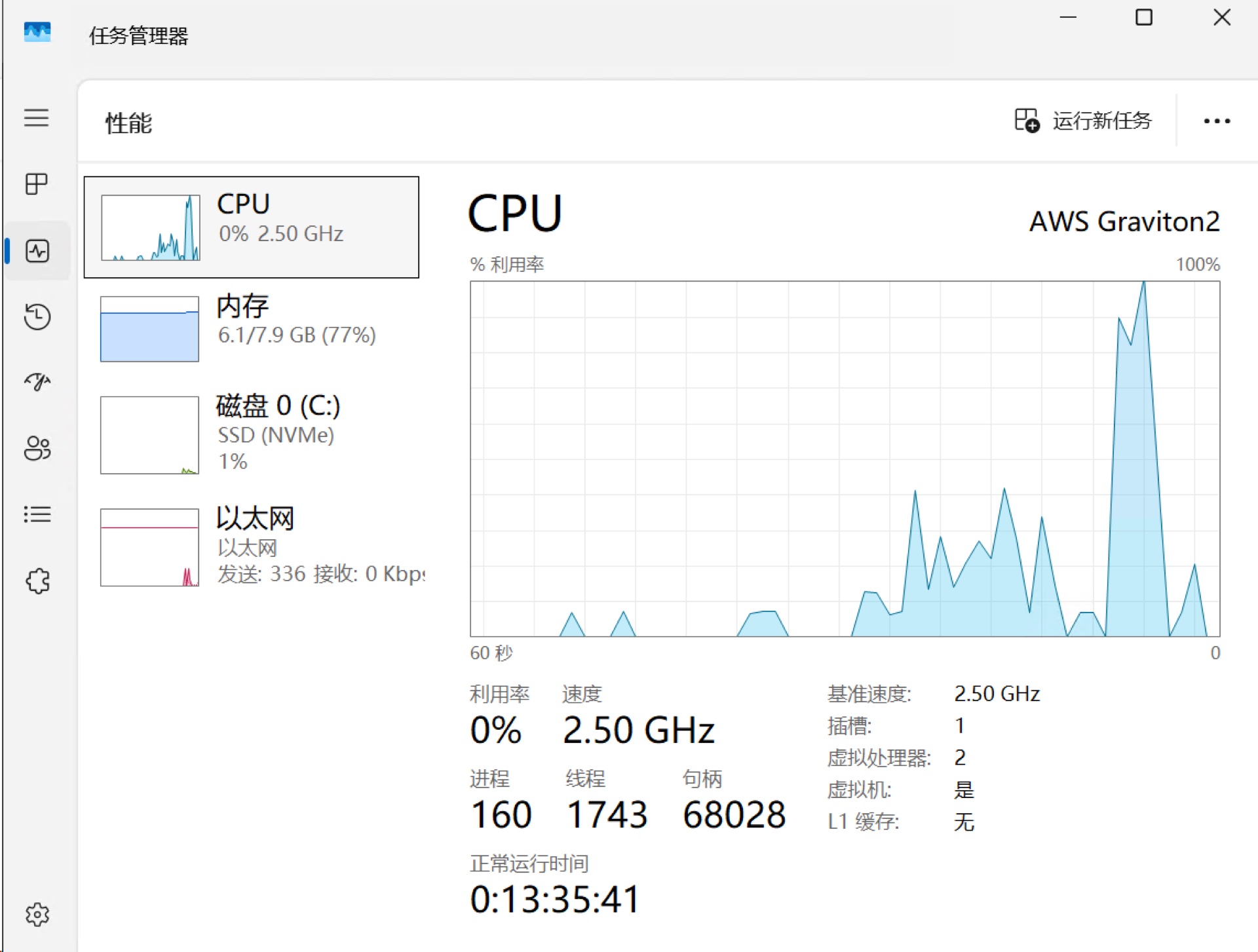
AWS does not provide Windows AMIs for the Graviton architecture, but that doesn't mean Graviton can't run Windows. This article documents how to use the open-source project bin456789/reinstall's one-click DD script to reinstall a t4g instance running Amazon Linux 2023 into Windows 11 Pro ARM64 in place.
Why Graviton Can't Officially Run Windows
AWS only provides Windows AMIs for the x86 architecture. Graviton uses the ARM64 architecture. Although Microsoft has Windows on ARM, AWS has not done official driver adaptation and AMI publishing for the Graviton platform. So the normal flow is: choose t3/t3a x86 instances for Windows, and Graviton can only run Linux.
But "not officially supported" doesn't mean "can't run." The reinstall.sh script can directly DD-install Windows on an existing Linux instance, including the ARM64 version. Test environment:
- Instance type:
t4g.large(2 vCPU / 8 GB) - Original system: Amazon Linux 2023 aarch64, 50 GB EBS (gp3), UEFI boot
- Target system: Windows 11 Pro 25H2 ARM64 (Build 26200.6584), Chinese version
Core Finding: The Counter-Intuitive NVMe Driver Pitfall
The most counter-intuitive part of the entire process: Injecting the official AWS NVMe driver actually causes boot failure; only the Microsoft inbox StorNVMe works properly.
StorNVMe.sys is a standard NVMe driver built into the system image by Microsoft since Windows 8.1. It loads automatically during installation without any external injection or manual operation. The Has StorNVMe: true in the reinstall.sh log means the script detected the ISO includes this inbox driver.
Real-world comparison:
| Approach | NVMe Driver | ENA Driver | Result |
|---|---|---|---|
| A (Success) | No injection, use inbox StorNVMe | Inject official AWS ARM64 ENA | Boots normally, RDP accessible |
| B (Failure) | Inject official AWS AWSNVMe100.sys | Inject official AWS ARM64 ENA | Instance status checks continuously fail, port can handshake but no response |
Approach B's script logs show everything was normal (driver files correctly copied to boot.wim, ***** DONE ***** and reboot), but Windows simply wouldn't start. The likely cause is boot-start driver loading order or ARM64 compatibility issues.
Pitfall Journey
Script Fails with 404 on Direct Run
When running reinstall.sh to install Windows directly, the script aborts at the AWS driver injection stage:
***** ADD DRIVERS: AWS *****
https://s3.cn-north-1.amazonaws.com.cn/ec2-windows-drivers-downloads-cn/NVMe/ARM64/Latest/AWSNVMe.zip
[ERROR] CUID#7 - Download aborted. URI=.../NVMe/ARM64/Latest/AWSNVMe.zip
  -> [HttpSkipResponseCommand.cc:218] errorCode=3 Resource not found
***** ERROR *****
Failed to download .../NVMe/ARM64/Latest/AWSNVMe.zip
The reason is that the script forcibly appends an /ARM64 subdirectory for the arm64 architecture when downloading the NVMe driver, but AWS's NVMe driver bucket doesn't have a NVMe/ARM64/ directory at all (only ENA has an ARM64 subdirectory), causing the 404.
In reality, NVMe/Latest/AWSNVMe.zip is an amd64 + ARM64 dual-architecture universal package. The AWSNVMe.inf [Manufacturer] section declares both architectures:
[Manufacturer]
%Amazon% = AWSNVME, NTamd64.10.0, NTARM64.10.0
[AWSNVME.NTamd64.10.0]
[AWSNVME.NTARM64.10.0]
The script appending /ARM64 subdirectory is a bug — the correct path should be NVMe/Latest/AWSNVMe.zip without a subdirectory. However, knowing the above conclusion, the correct approach is to simply skip NVMe driver injection altogether.
ISO Source
The reinstall script defaults to finding ISOs from cloud storage, but those require browser interaction and aren't direct links, so automatic download fails. You need to manually specify the official Microsoft ARM64 Consumer direct link (you can find the corresponding language static link at massgrave.dev/windows_arm_links).
Microsoft CDN has noticeable rate limiting for China outbound traffic, with speeds fluctuating between 400 KiB/s and 20 MiB/s, making the 7 GB ISO download take a long time.
Complete Procedure
1. Launch t4g Instance
Choose t4g.medium or larger instance type, with disk ≥ 30 GB. Security group should allow inbound TCP 3389 (RDP) and SSH 22.
2. Download Script and Prepare Installation
curl -O https://raw.githubusercontent.com/bin456789/reinstall/main/reinstall.sh

sudo bash reinstall.sh windows \
  --image-name="Windows 11 Pro" \
  --lang=zh-cn \
  --username=administrator \
  --password='YourPassword123' \
  --iso="https://software-static.download.prss.microsoft.com/dbazure/<id>/<build>_CLIENT_CONSUMER_A64FRE_zh-cn.iso"
Notes:
--image-namemust use a version included in the Consumer edition (Home / Home Single Language / Pro). Don't use IoT Enterprise LTSC, as that version has no ARM64 ISO.--isoshould use the official Microsoft ARM64 Consumer direct link. If not specified, the script will find a cloud storage link requiring browser interaction and get stuck.
3. Reboot into Alpine Installation Environment
sudo rebootAfter rebooting, GRUB boots into the Alpine Live environment, and trans.sh automatically starts running: identifying NVMe disk and ENA network adapter, partitioning, and downloading the Windows ISO.
The SSH login username for the Alpine environment is the administrator set by --username in the previous step, with the corresponding password — not root.
4. Patch trans.sh to Skip NVMe Injection
This is the core step. When trans.sh reaches the AWS driver injection stage, it will abort with a 404, stopping at the Alpine command line and prompting Run 'sudo /trans.sh' to retry.
At this point, log into Alpine and modify /trans.sh to remove NVMe driver injection:
sudo cp /trans.sh /trans.sh.bak
sudo sed -i '/AWSNVMe\.zip/d' /trans.sh

# Syntax check
sh -n /trans.sh && echo OK
After modification, add_driver_aws() should only contain ENA download and extraction:
download "$(get_aws_repo)/ENA$arch_dir/$ena_ver/AwsEnaNetworkDriver.zip" $drv/AwsEnaNetworkDriver.zip
unzip -o -d $drv/aws/ $drv/AwsEnaNetworkDriver.zip
cp_drivers $drv/aws
5. Use setsid to Detach from SSH and Re-run
Running sudo /trans.sh directly in the foreground will be killed by SIGHUP when SSH disconnects. Use setsid to detach from SSH and run independently:
doas sh -c 'setsid sh -c "/trans.sh >/reinstall.log 2>&1" </dev/null >/dev/null 2>&1 &'After that, the process is fully automatic with no manual intervention needed. You can check progress anytime:
tail -c 200 /reinstall.log | tr '\r' '\n' | tail -5Alternative: Patch initrd Before Reboot
If you want to avoid the redundant ISO download caused by "fail first then re-run," you can patch the trans.sh embedded in initramfs after step 2 preparation is complete but before the step 3 reboot:
TRANS=/reinstall-tmp/initrd/trans.sh
sudo cp "$TRANS" "$TRANS.bak"
sudo sed -i '/AWSNVMe\.zip/d' "$TRANS"
sh -n "$TRANS" && echo OK

cd /reinstall-tmp/initrd
find . | sudo cpio --quiet -o -H newc -R 0:0 | gzip -1 | sudo tee /reinstall-initrd >/dev/null
Then sudo reboot. After reboot, Alpine runs the modified script and succeeds on the first try.
The entire process from reboot to RDP availability takes approximately 30–60 minutes (mainly depending on ISO download speed).
6. Verification and Login
- RDP login: username
administrator, password is what you set. - Windows default firewall blocks ICMP, so ping not working is normal. To determine if the instance truly started, rely on instance status checks passing + RDP being accessible.
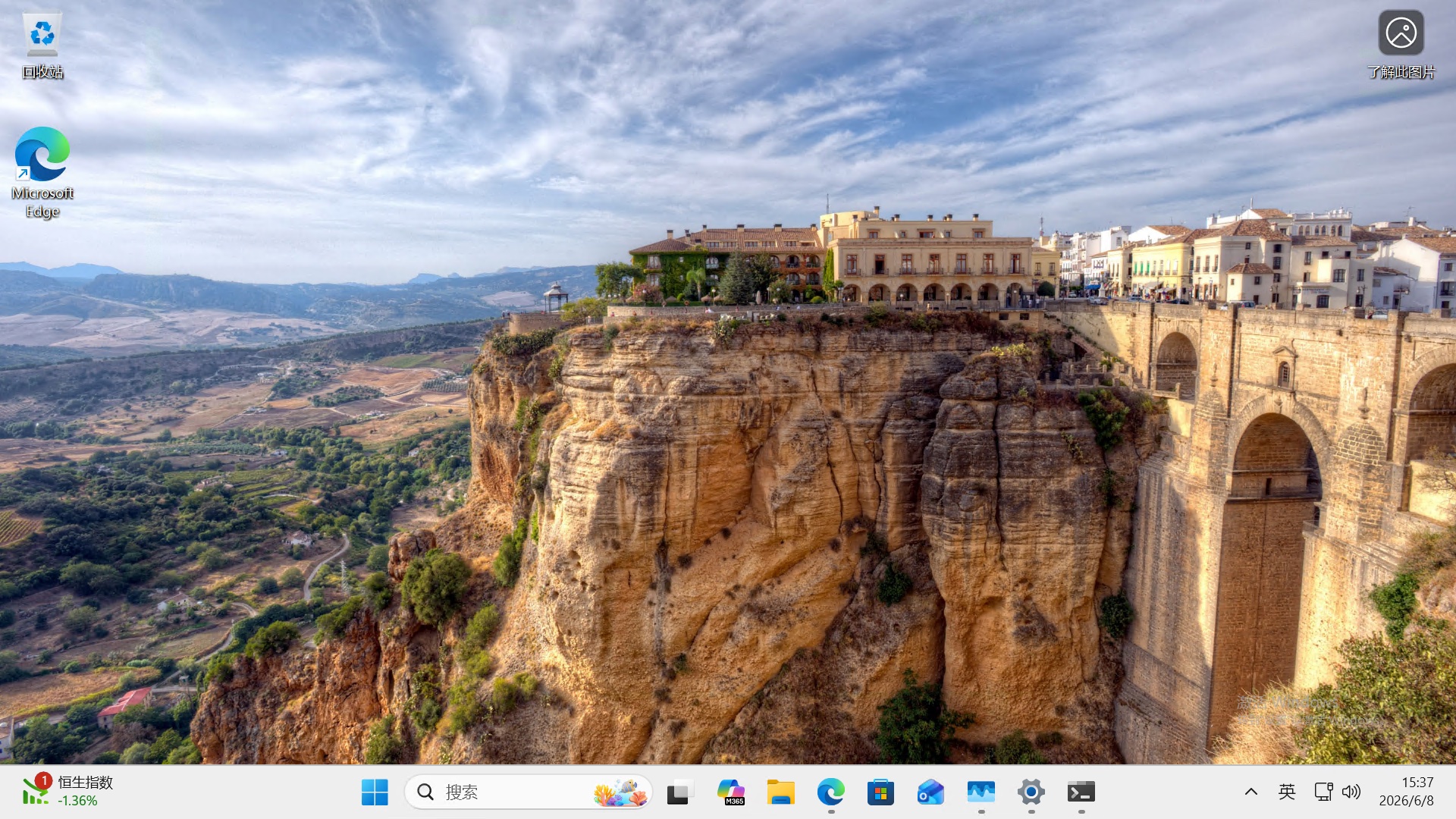
- The network adapter uses the official AWS ENA ARM64 driver. RDP connecting successfully proves ENA is working.
Pitfall Avoidance Key Points
- Don't choose LTSC / IoT Enterprise versions — no ARM64 ISO available.
- Don't run trans.sh in SSH foreground — use
setsidto detach from SSH and avoid SIGHUP killing the process on disconnect. - Alpine installation environment SSH username is the
--usernameset in the script (e.g., administrator) + corresponding password, not root. - Don't inject the official AWS NVMe driver. Even if script logs show driver injection succeeded and
DONEwith a reboot, it doesn't mean Windows will start. Always verify with instance status checks and actual RDP testing. - Images are strongly tied to Graviton generation and cannot be migrated across generations. In testing, an instance DD-installed on t4g (Graviton2), converted to AMI, failed to boot on m8g (Graviton4) — UEFI couldn't find a bootable system and entered a boot retry loop. Different Graviton generations have different UEFI firmware, ACPI tables, and CPU features. If you need to run on m8g, you should redo the entire process from scratch on an m8g instance.
Summary
This approach is essentially unofficial — AWS does not support Graviton running Windows, and it's only suitable for compatibility testing or temporary verification, not production use. The most counter-intuitive finding: injecting the official AWS ARM64 NVMe driver actually prevents booting; only the Microsoft inbox StorNVMe works. When reproducing, follow this article and skip NVMe driver injection directly.
References
- bin456789/reinstall — One-click reinstall script
- Windows 11 on Arm ISO download — Official Microsoft
- Amazon EBS volumes and NVMe — AWS NVMe driver documentation
- Enhanced networking ENA — ENA driver documentation